


Local Information System - Maintenance walk-through
We have produced the following screen shots using Windows 7, but the system runs under many different versions of Windows. Note that we used an out of date version of Epsom & Ewell's database to produce these screen shots. They don't represent the current state of the system.
The first screen we see when we run the maintenance utility asks us for an id and password:
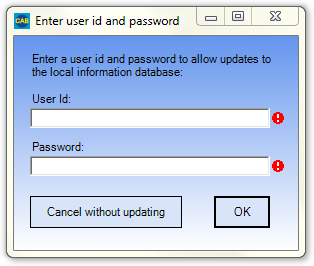
This screen is suppressed, however, if you have logged in to your network and your network id matches an internal list of local information editors.
The maintenance screens starts off looking like this:
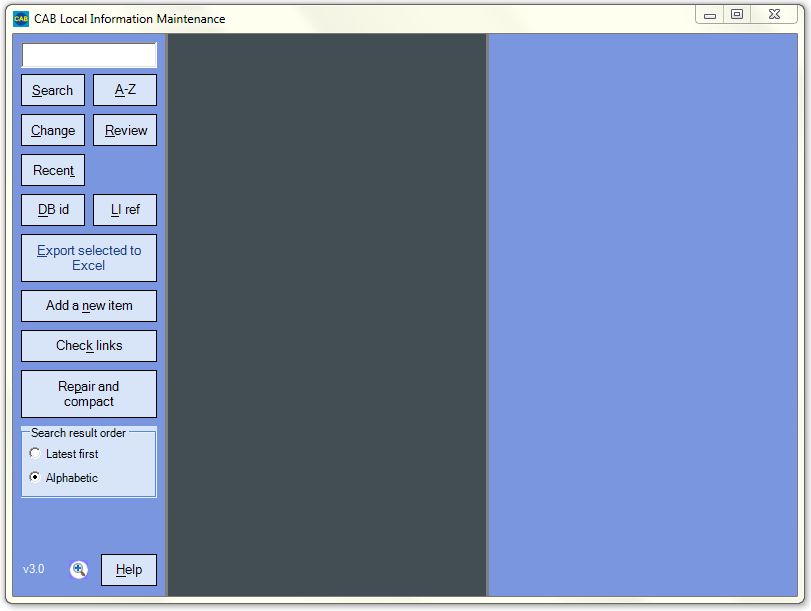
You can change the size of the screen by dragging any of the sides or corners. You can also drag the vertical boundaries inside the screen to the left and right to show more information. You can also click the icon at the bottom left of the screen to see this screen:
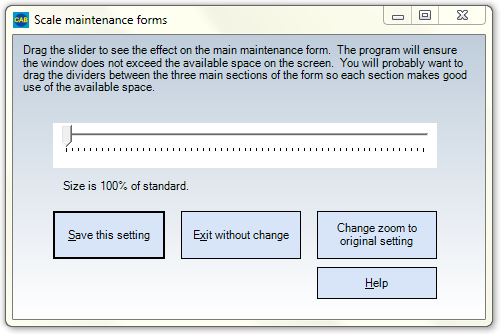
This allows you to resize the content of the screen - useful for people with weak vision or users of high resolution displays.
Returning to the main screen...
You get the same search facilities as you get with the enquiry screen plus the ability to search for:
- Items that haven't changed for a while;
- Items that have changed recently; and
- Items that need to be reviewed (because you have set a review date).
You can also search for items by their local information filing system reference or their database id.
Searching for "blind" finds three matches:
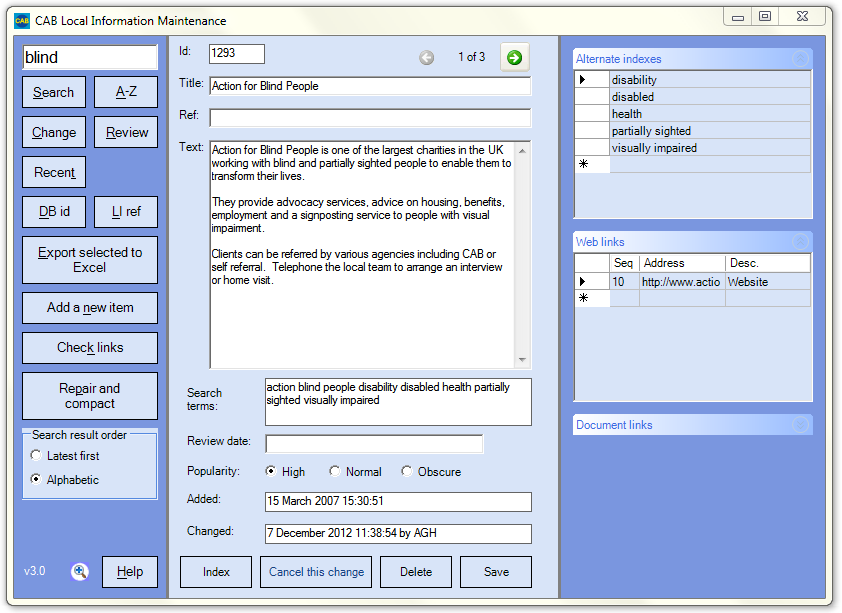
You can page backwards and forwards between the matched items (you can choose whether to show items 'Latest first' or alphabetically), using the arrows at the top centre of the screen, until you find the item you want. Note:
- The centre part of the screen shows the main components of the item.
- The right hand side shows the optional components, the entry boxes are automatically concealed if they are not used but you can show them by clicking the arrows in the title bars.
- The id is generated for you automatically.
- The 'search terms' box shows you the words that can be used to search for this item, you can add additional ones if you want in the 'Alternate indexes' box.
- Use the 'Review date' if you want to be reminded to come back and review the item again in, say, a year's time.
- Check the 'Popular' box if the entry is likely to solve many questions in a given area. Popular items are highlighted with an icon in the enquiry program and are sorted to the front of lists of matching entries.
- The 'added' and 'changed' boxes are maintained for you automatically.
- You can update the web and document links by dragging pages onto the screen, or you can enter addresses manually.
- You can check an address is correct by double-clicking it - the maintenance program displays the web page or document if it can.
We provide some tools to help you create alternate index entries. For example, clicking the 'Index' button shows:
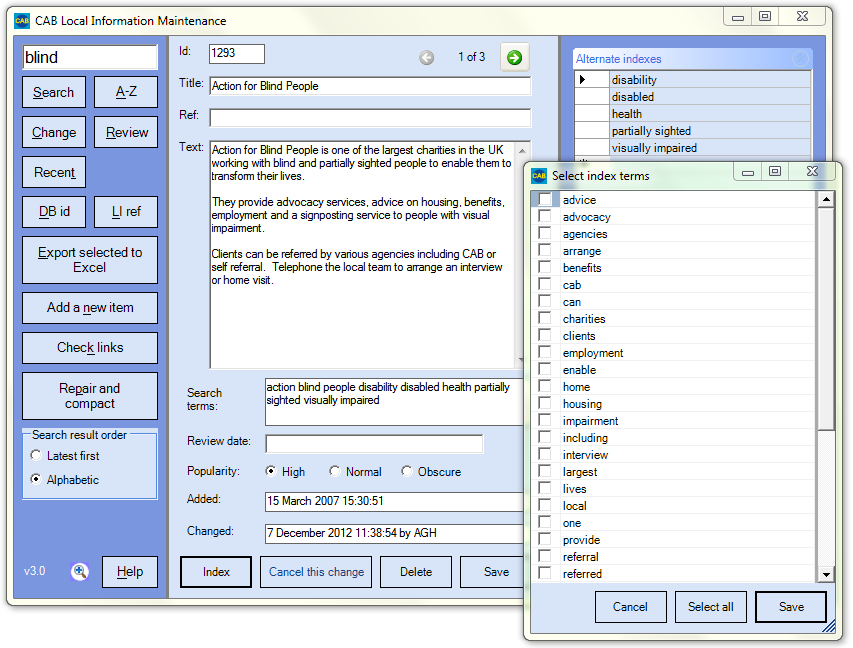
Note that:
- The program scans the item looking for possible search terms
- It excludes terms that are already indexed and 'noise' words like 'and' and 'is'
- Right-clicking the text box shows options to:
- look through highlighted sections of the text for search
- add a selected word or phrase to the index
To add a new item to the database, click 'Add a new item'. You will see an empty screen like this:
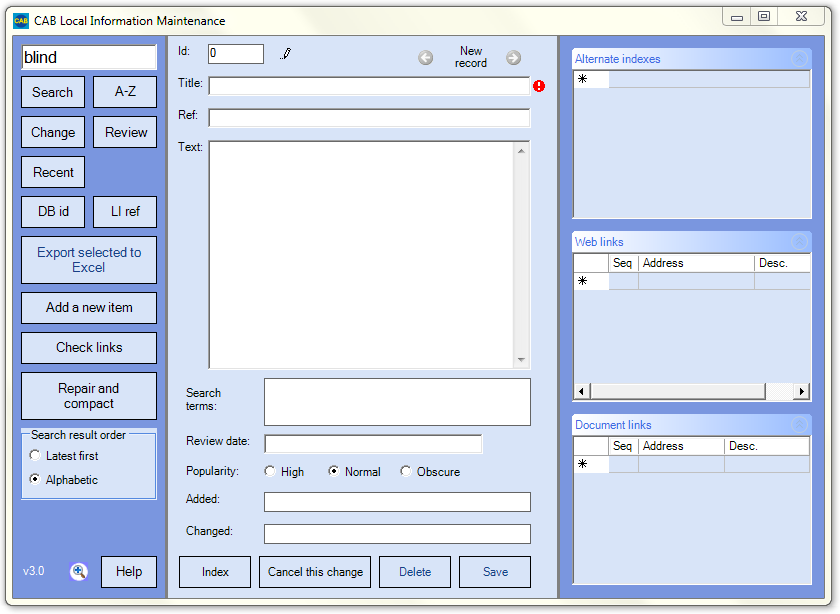
If the system detects an error it shows you a red exclamation mark. To see the error message you just have to move your mouse over it.
The program displays a pencil icon at the top of the screen while you are making changes. It also helps you keep you changes by asking you if you want to save them if, for example, you move to a different item.
The system comes with built-in help which appears like this:
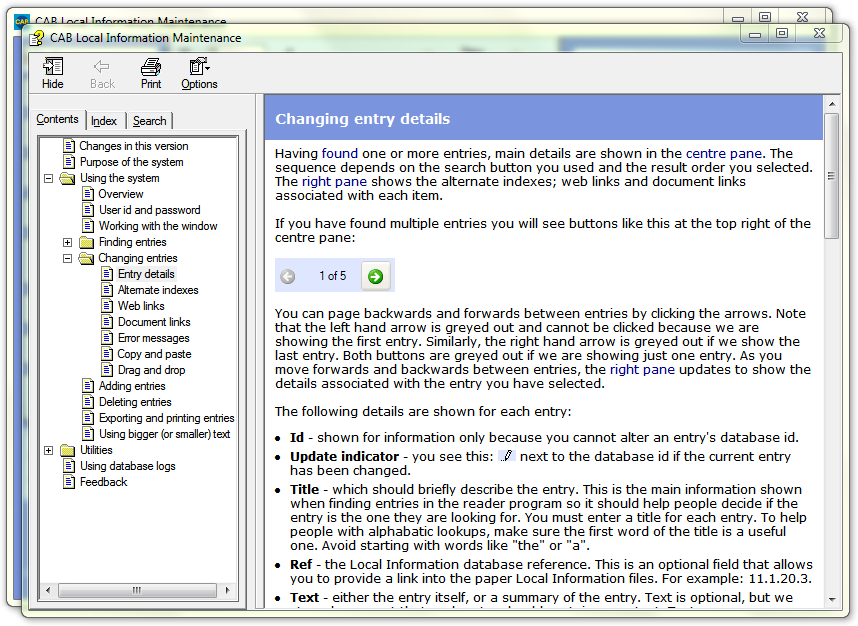
You can also search the help for the assistance you need.
The check links button displays a tool that allows you to check whether all the links from the database are still valid:
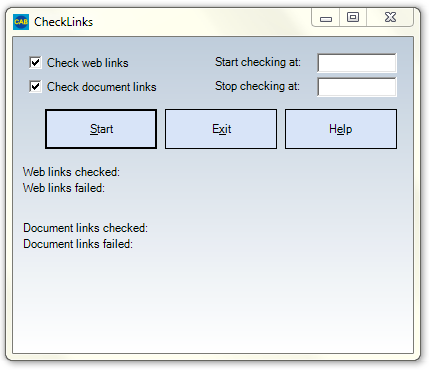
The 'Repair and compact' button keeps your database as small as possible and fixes any problems it finds.
Find out about other components of the desktop version.
Find out about the intranet version.
Get your free copy of the Local Information System.
Accesskey links: Skip navigation | Home page | Accessibility | Contact us | Accesskeys