


Local Information System - Enquiry walk-through
We have produced the following screen shots using Windows 7, but the system runs under many different versions of Windows. Note that we used an out of date version of Epsom & Ewell's database to produce these screen shots. They don't represent the current state of the system.
This is the initial screen shown when an adviser first starts the system.
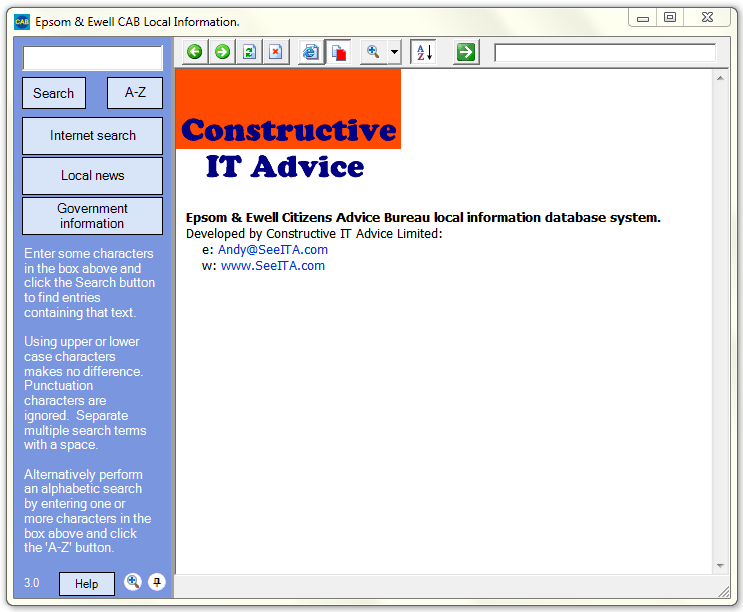
Note that the 'Local news' and 'Government information' buttons are 'soft' buttons that you can re-label and redefine to do different things depending on your needs or - if you don't need them - you can hide them.
To search the local information database you enter some text in the box at the top left and click the 'Search' button. For example, searching for "blind" shows this screen:
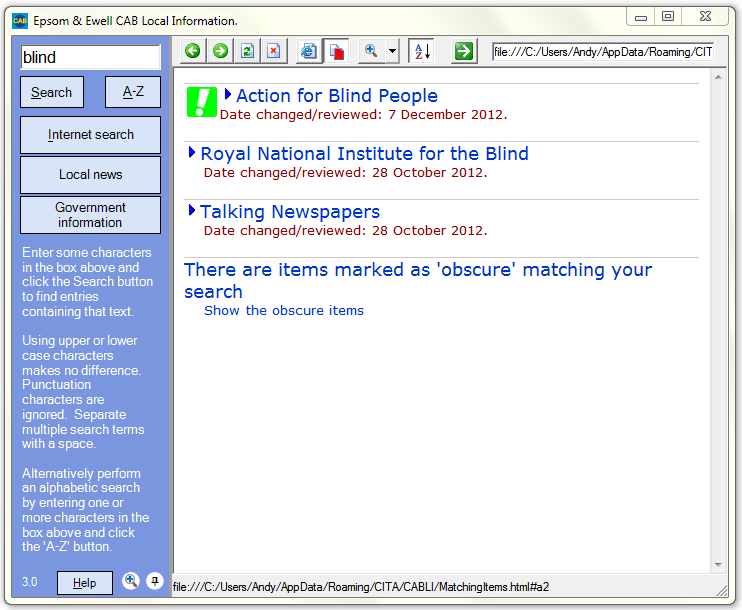
Note that the search finds the word "blind" even if it is not the first word of the title. It can also match items that do not have the word "blind" in the title or even in the text of the item (we could create an alternate index entry for "unsighted", for example). You can search for parts of words; for example "advoc" will find items containing "advocacy" and "advocate". You can also search for multiple terms so "surrey carers" will find "Mid-Surrey Young Carers Project" and exclude other entries referring to Surrey but not carers. You can also use negative search terms, so searching for "surrey -council" will find all entries relating to surrey but exclude those relating to the council.
In the above list, "Action for Blind People" is highlighted with an icon and is shown at the top of the list. That's because the information system coordinator has marked it as 'Popular'.
This search has also matched one or more obscure entries. These might be held purely for historic reasons. They are not shown to advisers, however, unless they explicitly ask to see them.
A toolbar button allows you to display entries alphabetically, or 'most recent first'.
The results of the search are displayed in a simplified web browser (It's actually Microsoft's Internet Explorer but with fewer buttons). You can expand any item to see all the text by clicking the triangle to the left of an item:
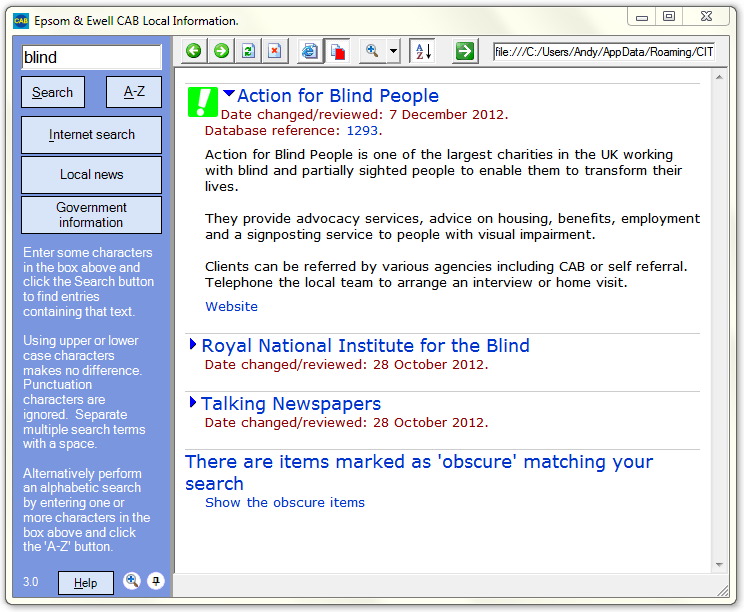
We can now see the infomation we hold about Action for Blind People. If we held leaflets or supporting documents in our paper files the entry would have shown the file reference. The database reference is a unique id allocated by the system to every item in the database. If someone sees some out-of-date information they can report the issue referring to the entry by its database reference. The database reference is an active link, clicking it shows just the selected entry:
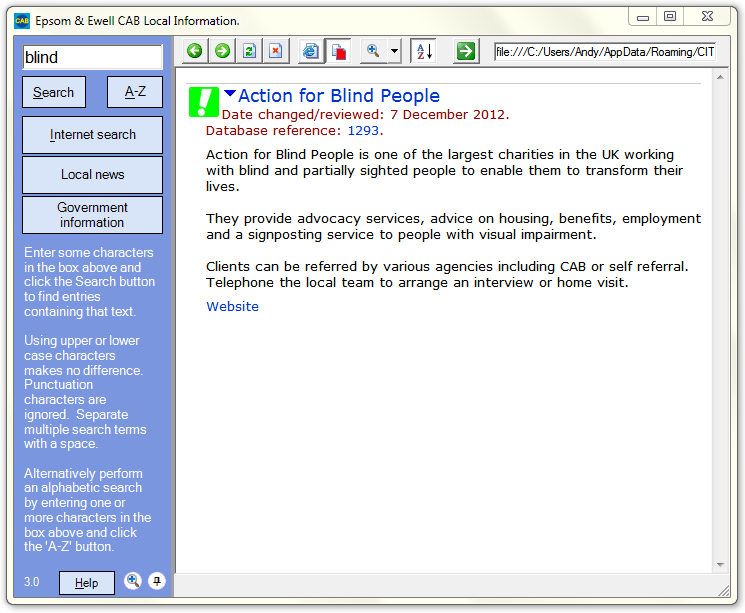
You can now right click the page to get options to print the search result for your records or for handing to clients.
Clicking the website link shows the Action for Blind People website inside the enquiry program:
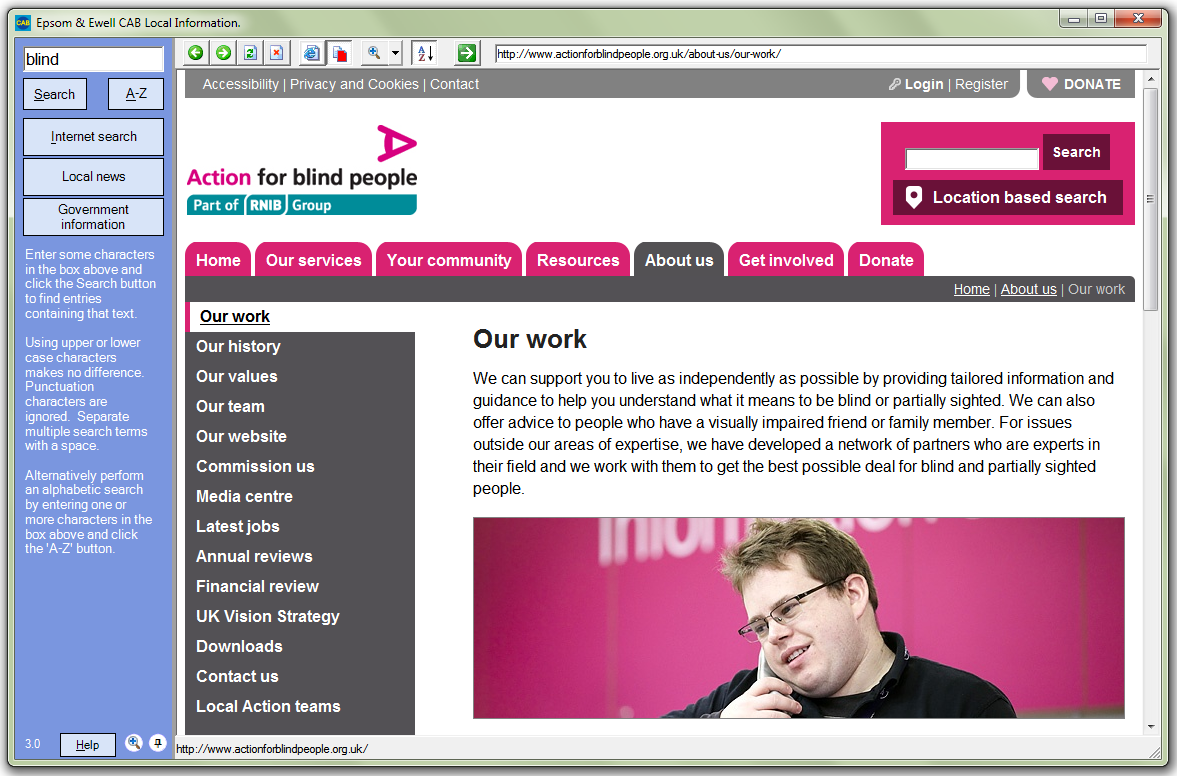
This illustrates an important use of the database. There's no point holding a lot of information in the database if that information is readily available from a web site. Linking to the information in this way means that the information available to advisers is much more likely to be accurate and up-to-date.
Note that we have resized the screen to show more information by dragging the bottom right corner. You can also drag the border between the left and right panes to change their sizes.
We can also link to documents held on the internet or our server. Here's an extract from the local information system installation guide displayed in Adobe Acrobat inside the local information window:
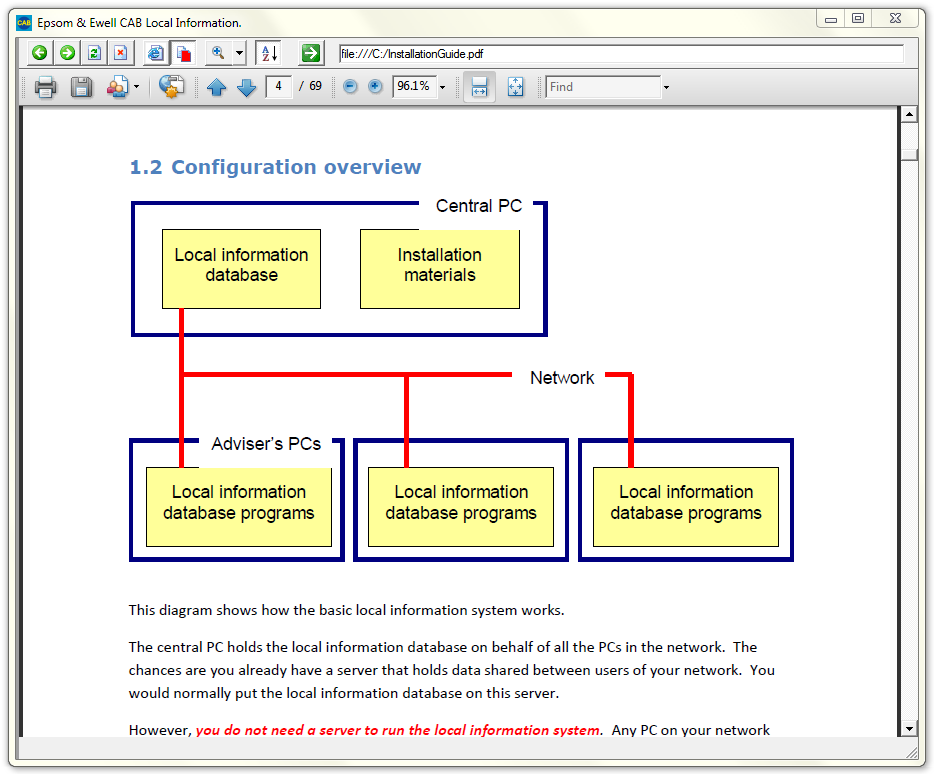
To see even more on screen we have clicked the little thumb tack icon at the bottom of the normal enquiry screen to hide the search buttons at the left. Moving your mouse to the left edge of the screen brings them back when you need them. Clicking the thumbtack icon again keeps them displayed.
The buttons at the top of the screen allow us move forwards and backwards between pages just like you can with any browser so we can go back to the list of matched items and try another one. You can even use forward and back buttons and the scroll wheel on your mouse if you have them.
The system also has a tool that blocks advertising pop-ups and a 'zoom' tool so you can increase or decrease the size of text and graphics on web pages and result lists. For example, here's the web page zoomed to 50%:
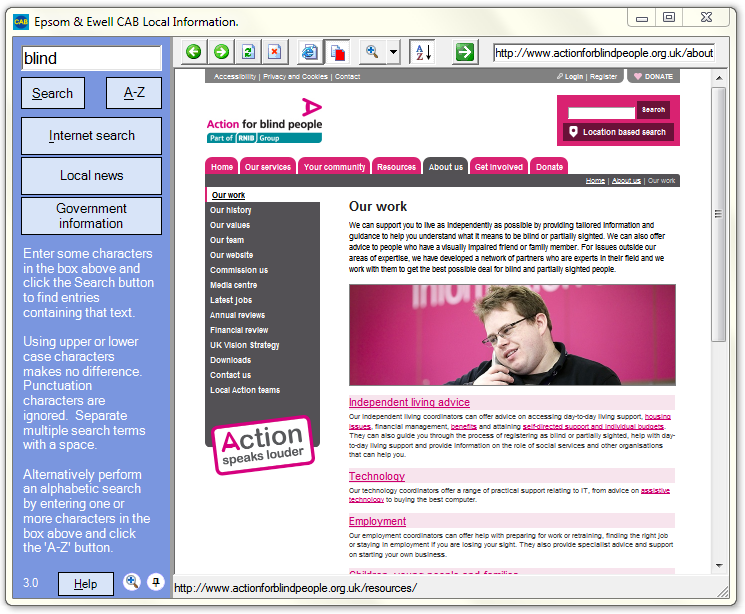
This feature requires Internet Explorer 7 or later. If you use a previous version of Internet Explorer, the Zoom tool is replaced by a text sizing tool.
Clicking the 'Zoom' icon at the bottom left of the screen displays this screen:
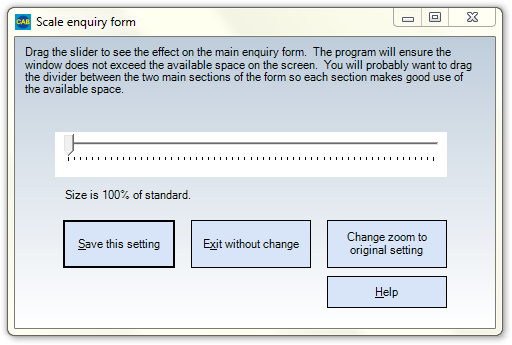
This allows you to resize the buttons and text at the left of the screen - useful for people with weak vision or users of high resolution displays.
Returning to the main screen...
The technical overview manual explains how you can tailor the appearance of the search screen including font used, size and colour without having to change the enquiry program.
You can use the enquiry screen as a normal web browser by entering web addresses at the top right of the page. You can also search the internet by entering search terms and clicking the 'Internet search' button. For example, a search for "epsom ewell CAB" reveals:
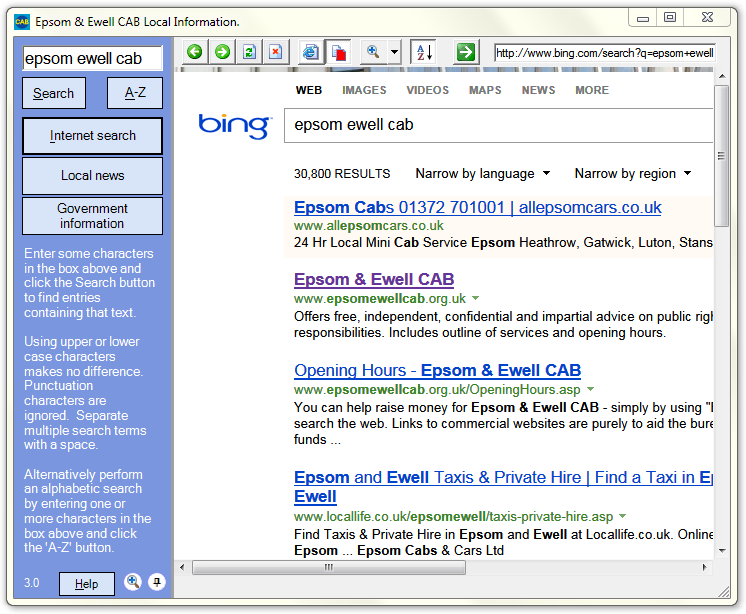
Note that we've used Microsoft Bing here. You can, however, link the 'Internet search' button to any search tool you like (Google, for example) without having to change the program.
The enquiry system comes with help text that brings up help relevant to the currently highlighted item. Pressing F1 with the search button highlighted displays:
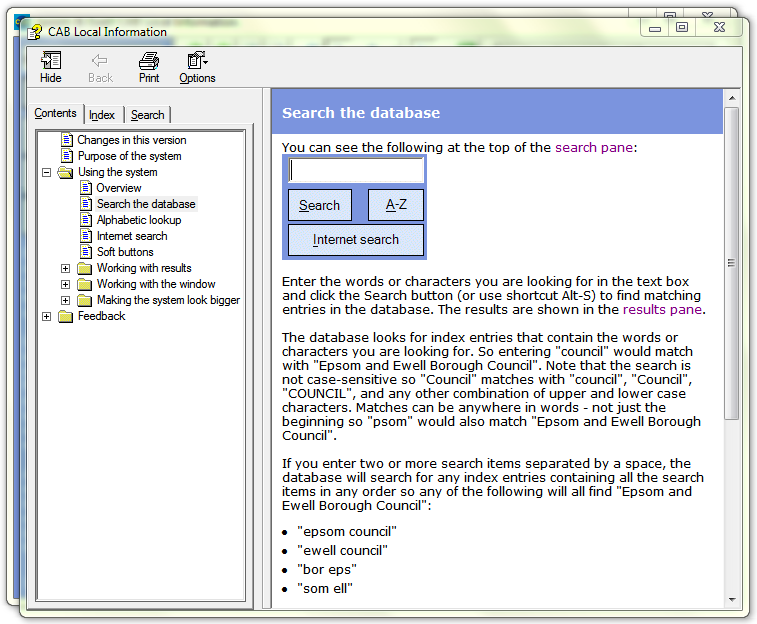
You can also search the help for the assistance you need.
Find out about other components of the desktop version.
Find out about the intranet version.
Get your free copy of the Local Information System.
Accesskey links: Skip navigation | Home page | Accessibility | Contact us | Accesskeys